Messages
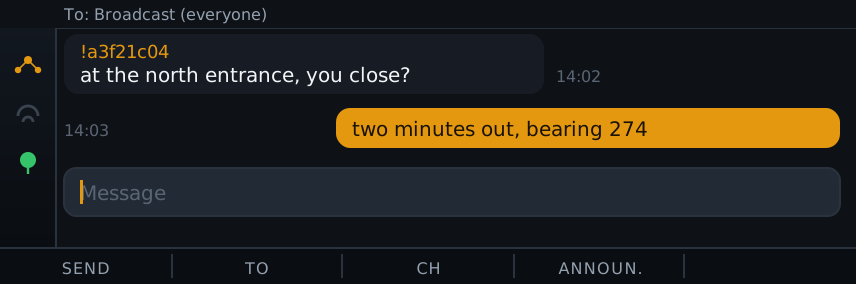
Messages is the main app. It shows the chat as bubbles, with your messages on the right in amber and received messages on the left in grey, labelled with the sender. There is no title bar; the “To:” line at the top is the context instead, so the chat uses the full height.
Choosing the recipient
Section titled “Choosing the recipient”The “To:” line shows where the next message goes:
To: Broadcast (everyone)in muted grey: everyone on the channel hears itTo: <name> (private)in amber: a direct message to one node
Press F2 (To) to cycle the recipient: Broadcast, then each node the badge has heard, then back to Broadcast. You can also open the Nodes app, select a node, and press Message to jump straight into a private chat with it. The chosen recipient is remembered when you leave and reopen the app, so it only changes when you change it.
Channels are rooms
Section titled “Channels are rooms”A channel is a room: everyone who shares its name and key sees its broadcasts. The badge can carry up to four, a primary plus three you add under the Channels group in Settings, each with a name and a base64 key. They all share one LoRa frequency and are told apart by their key, the way Meshtastic does it.
When more than one channel is configured, the “To:” line shows the active one in brackets and F3 (Ch) cycles between them. With only the primary configured, F3 says so and points at Settings. The chat shows only the messages on the selected channel, and a message you send goes out on it. Messages that arrive on another channel are still stored and pop up as a notification; switch to that channel to read them.
Sending
Section titled “Sending”The input is a single line at the bottom, focused when you open the app. Type a message and press Enter, or press F1 (Send). It goes to whoever the “To:” line shows.
Announce
Section titled “Announce”F4 (Announ.) broadcasts the badge’s node info and telemetry immediately, so a nearby device can discover it without waiting for the periodic announce. See the announce interval setting in Settings.
The function-key bar slides away
Section titled “The function-key bar slides away”To give the chat more room the bottom function-key bar hides a couple of seconds after you enter the app. The first press of a function key only brings the bar back so you can read the labels; press again, with the bar visible, to run the function. Back (F5) and Esc still leave in one press.
Reading and scrolling
Section titled “Reading and scrolling”Incoming messages are added to the history as they arrive, even when the app is closed, and a short popup shows the newest one on top of whatever screen you are on. Use the Up and Down arrows to scroll the history; the input stays focused so you can keep typing.
History across boots
Section titled “History across boots”The chat history is saved to NVS and reloaded on boot. The number of messages kept is set by
msg_keep in Settings, under the Messages group (default 50, maximum 64; set 0 to disable saving).
The firmware writes the history when you leave the app and on a short timer while messages arrive, so a
reboot keeps your recent conversation.